
Getting Started and Authenticating with OpenPay
Note: Completing this authentication requires OpenPay permission levels to create and access a Secret API Key.
OpenPay is a Source that SaaSync supports in syncing to a Destination. To get started syncing OpenPay to a Destination:
- Create a SaaSync account or login to SaaSync if you already have an account,
- From the SaaSync Connections page, add OpenPay as a Source,
- Enter a name in the Name field,
- Enter your API Key from OpenPay (this is the Secret Key),
- Select the preferred treatment for Paused Subscriptions,
- Enabled - The subscription will continue to contribute to MRR and the customer will become past-due after the paid service period ends. When un-paused, the status will return to active when the first invoice is generated and paid. This setting behaves as if the user simply doesn’t pay you but continues to count towards MRR.
- Disabled - The subscription will be canceled at the time it was paused. Upon the paid service period ending, the cancellation takes effect and MRR is reduced to 0. If un-paused, the subscription will reactivate upon the first invoice being generated and paid. This setting behaves like a user cancelling and then later reactivating.
- Select Connect to OpenPay.
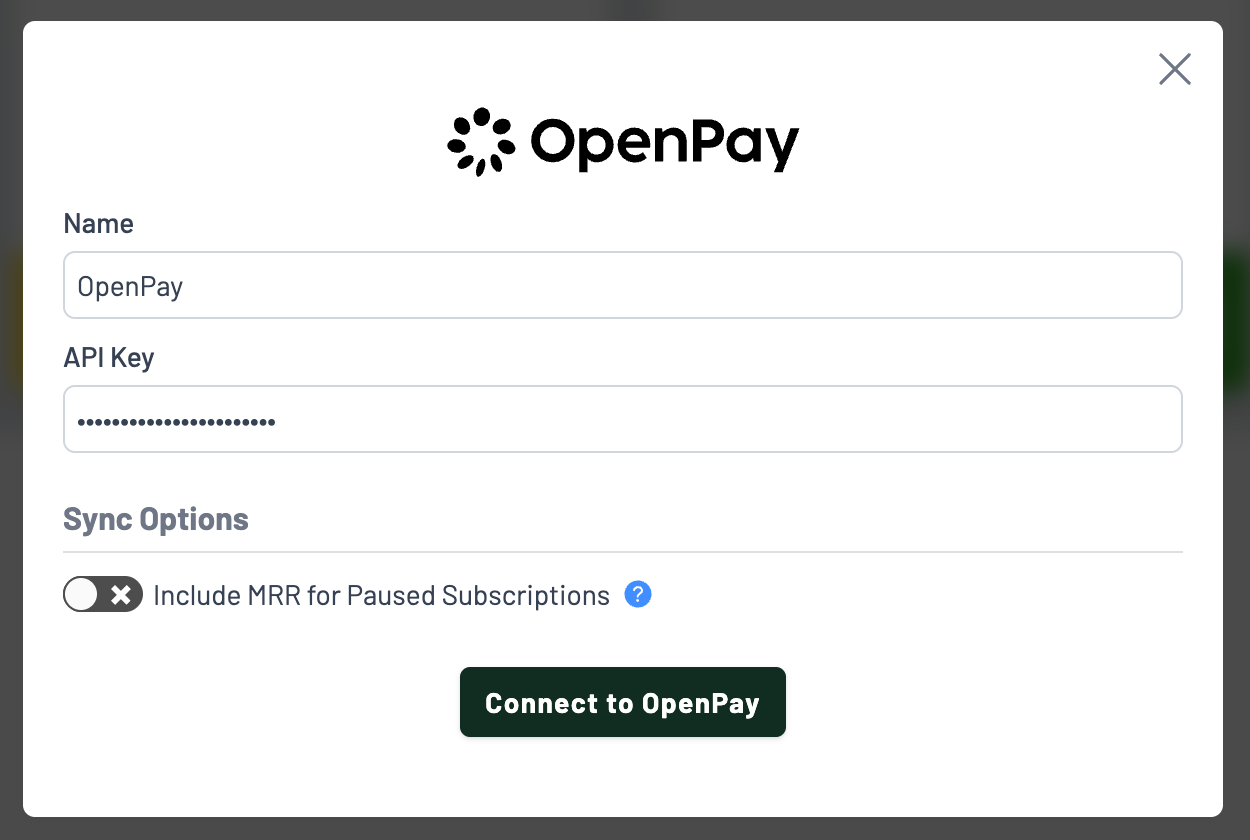
- Your account should now be authenticated to OpenPay.
This should complete the setup process. It may take a few minutes to possibly even several hours for your initial sync to complete depending upon how much data you have in OpenPay. You will receive an email from SaaSync when the initial sync completes.